Your control panel
Licenses, devices and plugin downloads: all of MixEngine AI on one page.
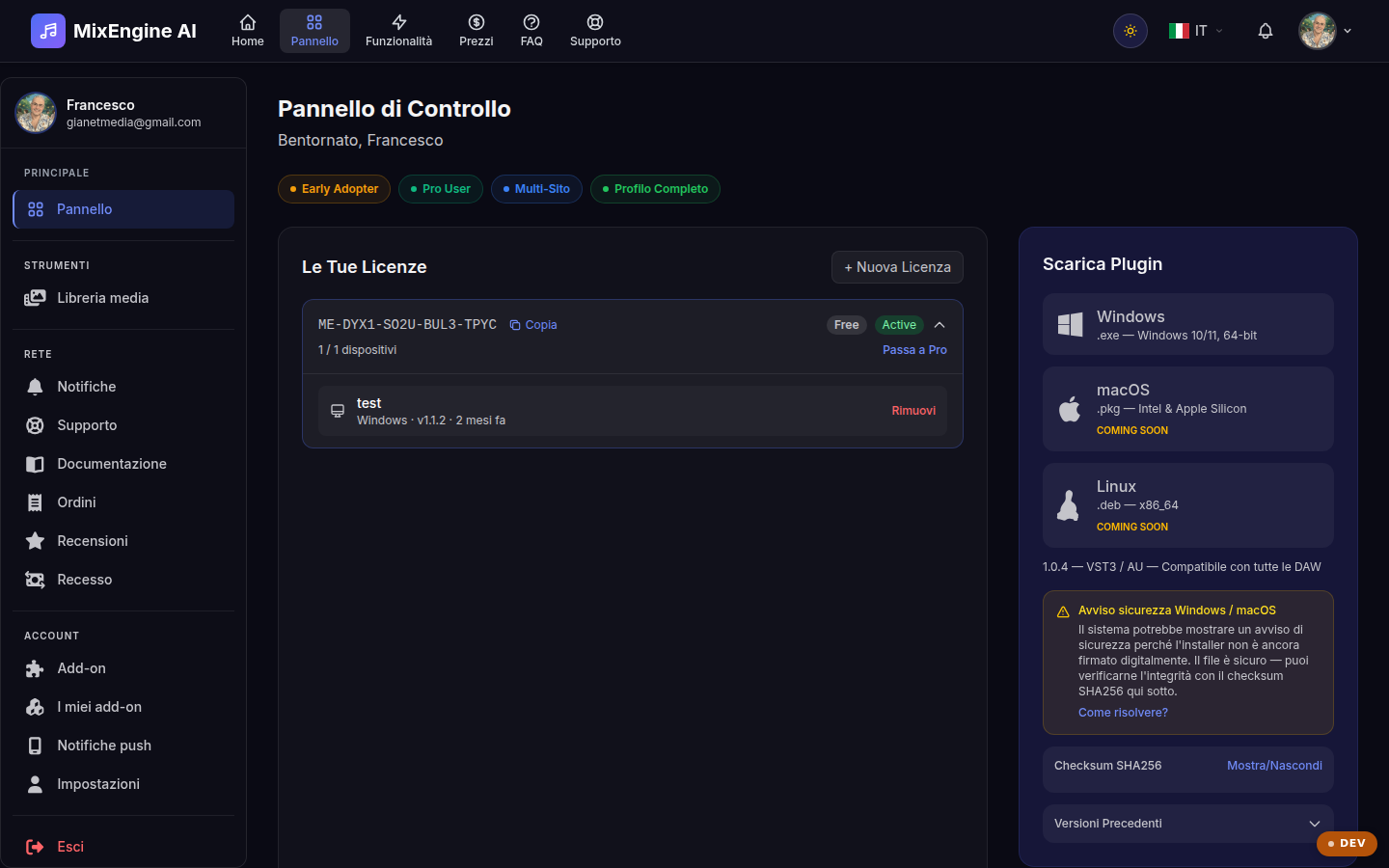
Key points
- Copy your license key and paste it into the plugin to activate it.
- Download the installer for your platform directly from here.
- Manage your connected devices and remove the ones you no longer use.
What the dashboard is for
The dashboard is the control center of your MixEngine AI: here you find your licenses with the key to enter in the plugin, the devices it is active on, the installer download button and the features included in your plan. If you don't have a license yet, you can create a FREE one from here in one click.
License and devices
Each license has a unique key: copy it with the dedicated button and paste it into the plugin the first time you open it. The devices section shows where the license is active, with operating system, plugin version and last access. You can remove a device at any time (for example after switching computers): it will be disconnected from the license and can be reconnected whenever you want.
Downloading and installing the plugin
The installer includes the VST3/AU plugin, the local AI server and Ollama in a single package: the AI model (~1-8 GB depending on your hardware) is downloaded automatically on first launch, with no configuration needed. Requirements: a DAW with VST3/AU support, 8 GB of RAM and 5 GB of free space. If Windows SmartScreen or macOS shows a security warning, the file is safe nonetheless: you can verify its integrity with the SHA256 checksum shown in the dashboard. At the bottom you also find previous versions, useful for rolling back if needed.
Upgrading to Pro
The Pro license is perpetual, with a one-time payment: it unlocks an unlimited plugin chain, sends (send/return), parameter automation, AI suggestions for EQ, compression and panning, AI model selection, preset synchronization and source separation. If your Pro license covers a previous version, the dashboard notifies you when a version upgrade is available.